
Tip & Trick
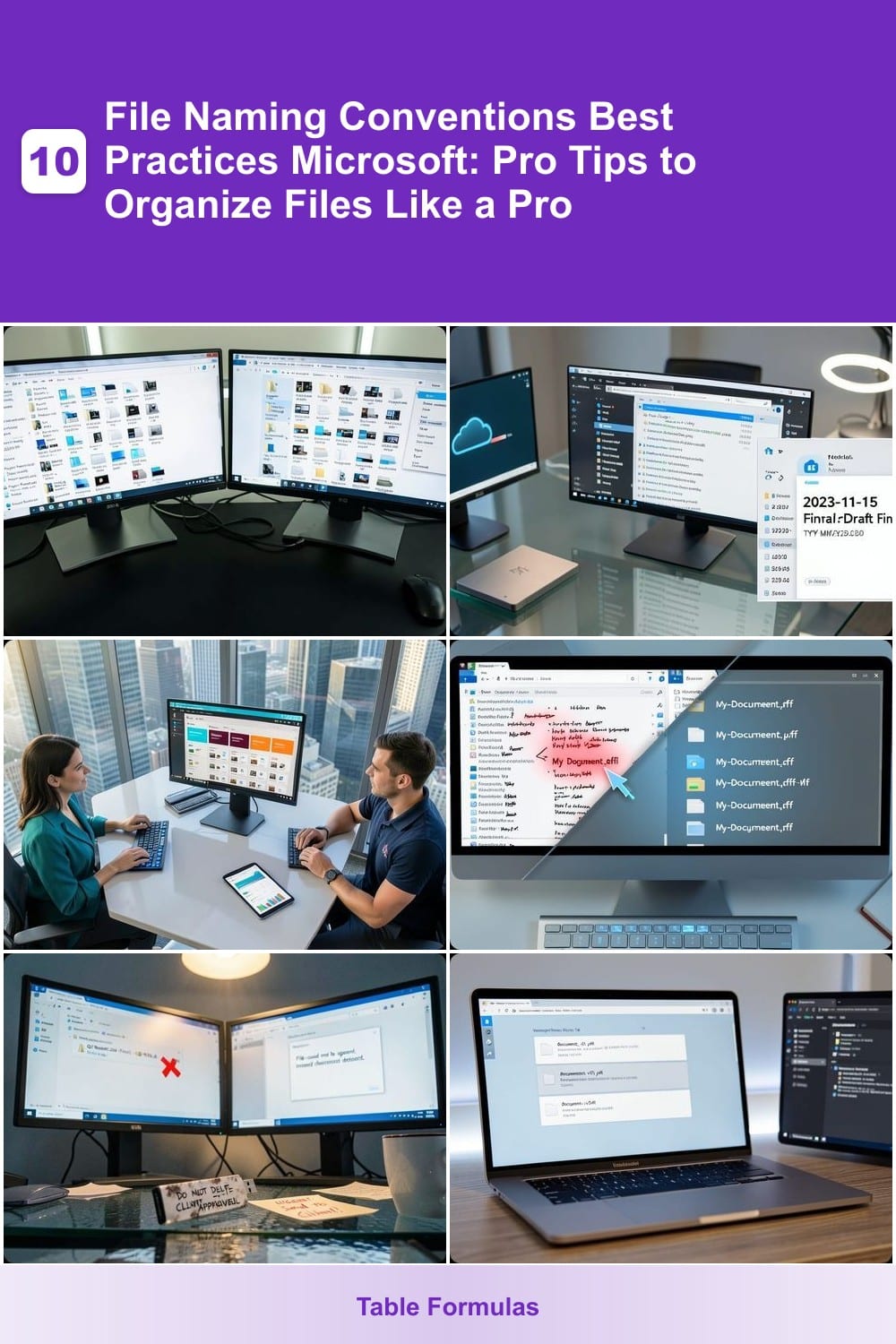
Struggling to find files in your Microsoft ecosystem? Mastering file naming conventions can save hours of frustration. These seven best practices will help you organize files efficiently across Windows, OneDrive, and Office applications.
Use Descriptive Lowercase Words Only
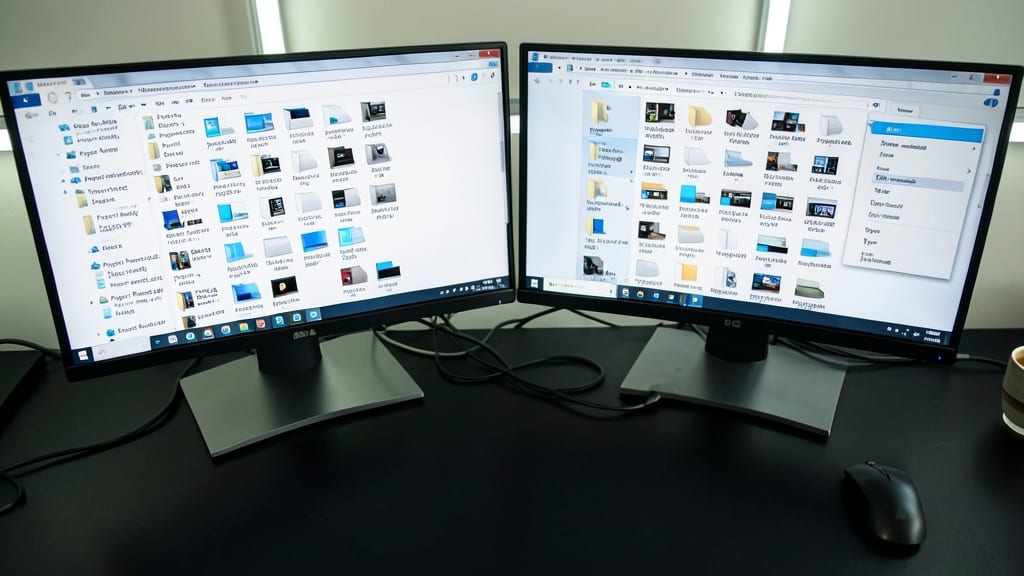
Shared folders turn into chaos when filenames like "Project_Report.docx" and "project-report.docx" coexist. Microsoft's Windows File Explorer treats uppercase/lowercase as identical, but inconsistent capitalization creates visual clutter and sorting headaches for teams.
Stick to all-lowercase words (e.g., monthly-sales-2024.pdf) for predictable alphabetical sorting. This approach syncs seamlessly across OneDrive, SharePoint, and Office apps, where case sensitivity can trip up collaborators. The bonus? No more "File Not Found" panic when colleagues search for your files.
Teams in collaborative environments—think marketing, finance, or IT—will appreciate this rule the most. It’s the simplest way to future-proof your shared drives for both humans and automation. ✨
Include Date Format YYYY-MM-DD
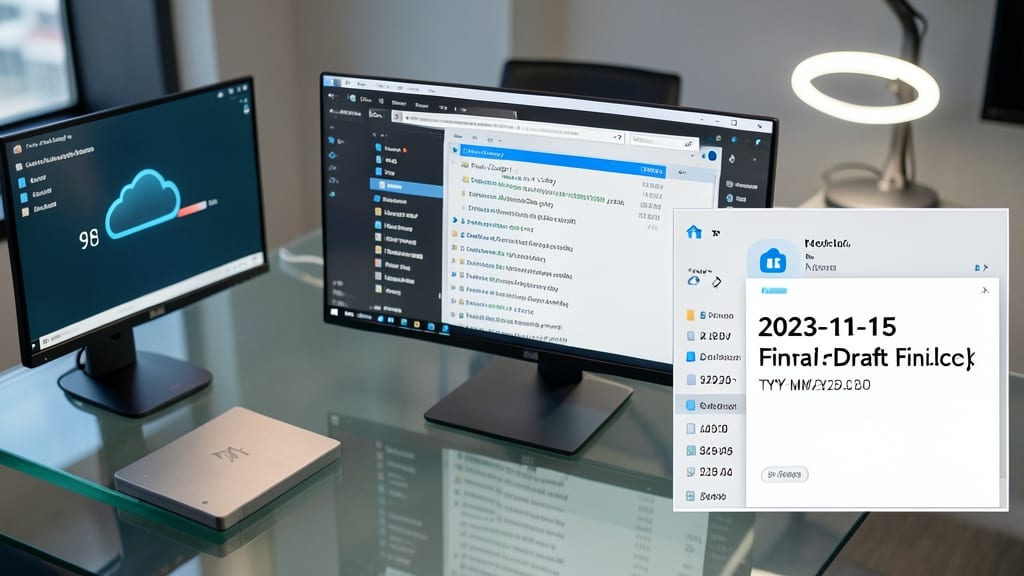
Ever spent 10 minutes scrolling through files only to realize you can’t remember which version was the final draft? The YYYY-MM-DD date format solves this by ensuring your files sort chronologically—no matter what app you use.
This format works seamlessly in Windows File Explorer, OneDrive, and Microsoft Office applications, making it perfect for tracking project timelines or version control. For example, "2024-05-15FinalReport.docx" will always appear before "2024-06-01UpdatedDraft.xlsx," even if you rename files later. It also integrates flawlessly with automated workflows in Power Automate and SharePoint.
Developers, project managers, and anyone handling versioned documents will appreciate how this format eliminates guesswork when searching for the latest file. It’s the gold standard for consistency across Microsoft’s ecosystem. ✨
Add Project Codes or Abbreviations
Need to instantly sort through hundreds of files across departments? Adding project codes or abbreviations (like MKT-2024-Q2 or FIN-REP-01) turns chaos into a searchable system. This approach is a game-changer for enterprise teams where shared drives hold files from multiple projects—think marketing, finance, or IT—all in one location.
Start with 3-4 character department codes (e.g., HR, ENG, SALES) followed by a hyphen and a unique project identifier. For example, PROJ-2024-Q3 clearly groups all Q3 project files together. This method works seamlessly with Windows Search, OneDrive filters, and SharePoint libraries, letting you filter by code in seconds. Plus, it’s easy to expand—just add new codes as projects launch.
Perfect for enterprise teams, remote collaborators, or anyone managing cross-departmental files. It’s the secret weapon for keeping shared drives organized without endless subfolders. ✨
Separate Words with Hyphens Not Spaces
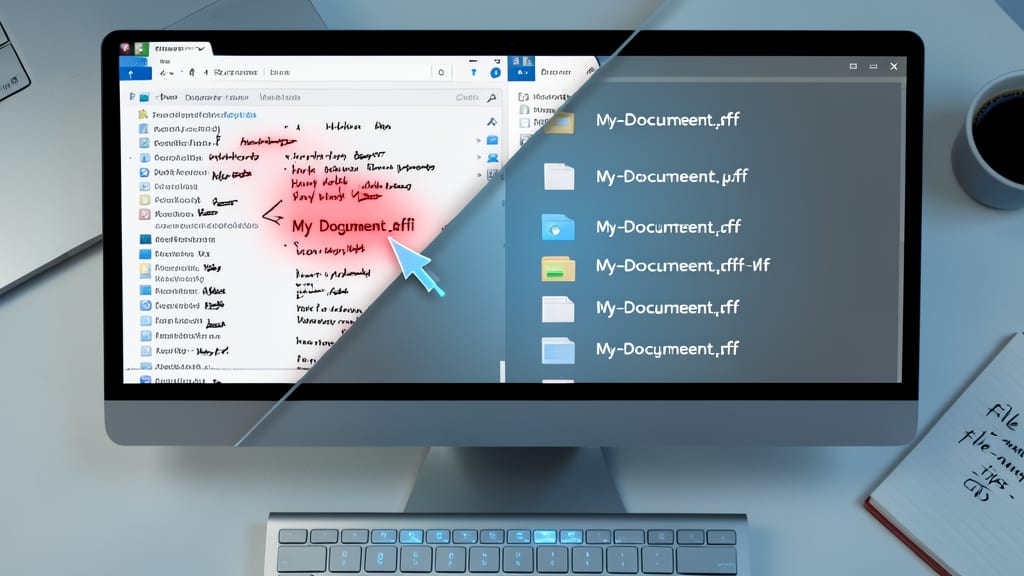
Tired of files mysteriously disappearing into alphabetical chaos? Windows File Explorer treats spaces as wildcards, causing "My Document.pdf" to sort between "My" and "Document" instead of together.
Using hyphens (-) instead of spaces ensures files appear exactly where you expect them—no surprises when scrolling through folders. This also guarantees 100% compatibility with Microsoft applications like OneDrive, SharePoint, and Teams, where spaces can sometimes cause syncing or sharing errors. Plus, hyphens work flawlessly across all Windows versions, from Windows 7 to Windows 11, without breaking legacy systems.
This rule is non-negotiable for anyone sharing files externally, whether with clients, colleagues, or cloud services. It’s the small tweak that keeps your workflows smooth and frustration-free. ✨
Avoid Special Characters and Spaces
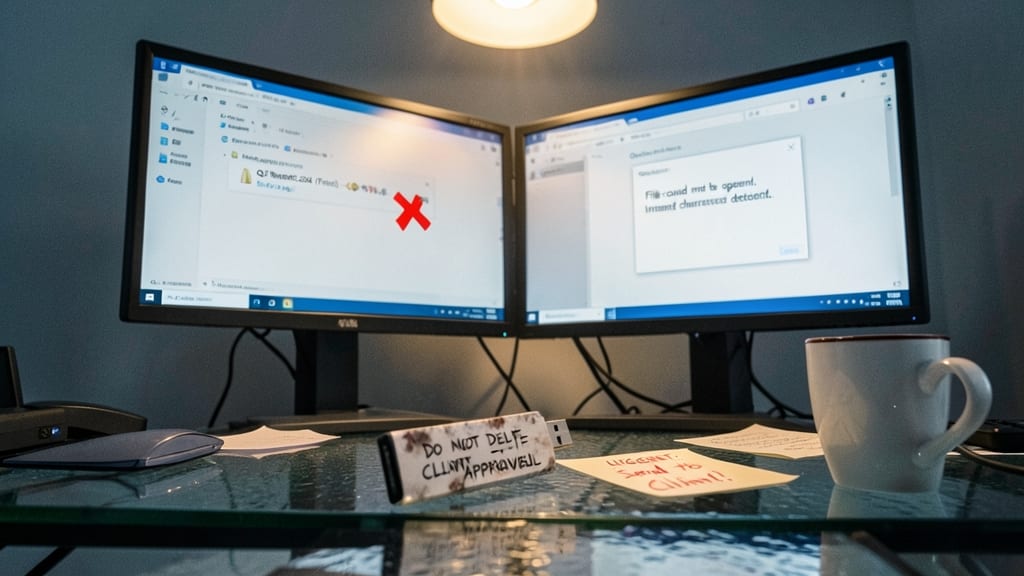
Ever hit "send" on an important file, only to get a cryptic error when your recipient tries to open it? Special characters and spaces in filenames are the silent saboteurs of Microsoft’s ecosystem, causing headaches from Windows to OneDrive.
Microsoft’s platforms—including Windows File Explorer, OneDrive, and Outlook—struggle with characters like **? / * : < > |, which can corrupt files or block uploads. Even spaces, while visually harmless, can break automation tools and scripting. Stick to alphanumeric characters (A-Z, 0-9) and hyphens for foolproof compatibility.
This rule is non-negotiable for freelancers, enterprise teams**, and anyone sharing files via email or cloud services. A single rogue character can turn a seamless workflow into a support nightmare. ✨
Use Version Numbers with Leading Zeros
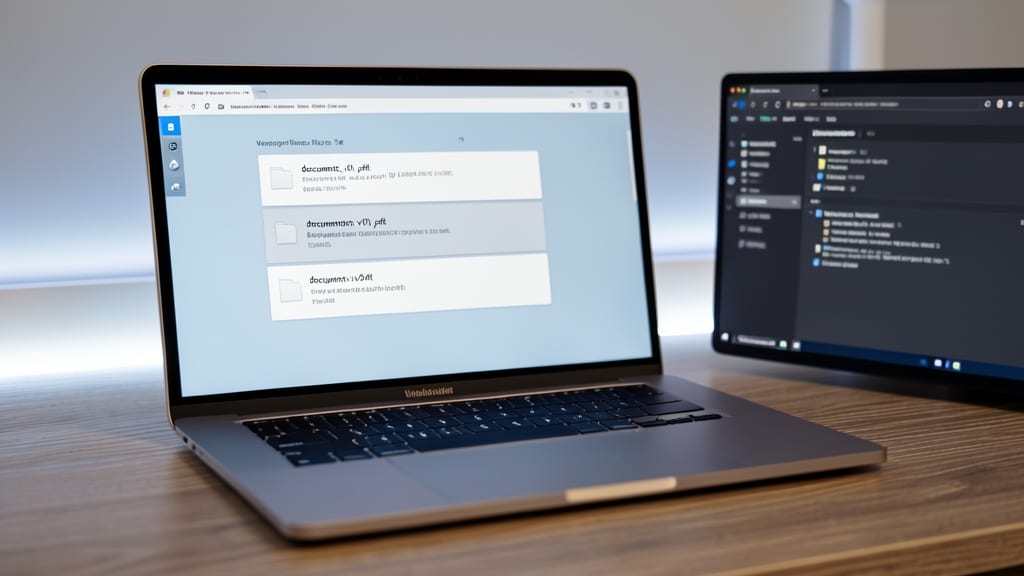
Tired of versioned files appearing out of order in your project folders? Adding leading zeros to version numbers (like v01, v02, v10) ensures they sort correctly in Windows File Explorer and Office applications, preventing the dreaded v1, v10, v2 jumble.
This simple tweak works seamlessly with Microsoft Word, Excel, and OneDrive, where file lists default to alphabetical sorting. For example, v01 will always appear before v10, making it ideal for tracking iterative updates or client revisions. It’s especially useful in shared folders where multiple contributors manage documents.
Perfect for marketing teams, legal departments, or developers handling version-controlled assets. A small detail that saves time during file reviews and client handoffs. ✨
Keep Names Under 255 Characters
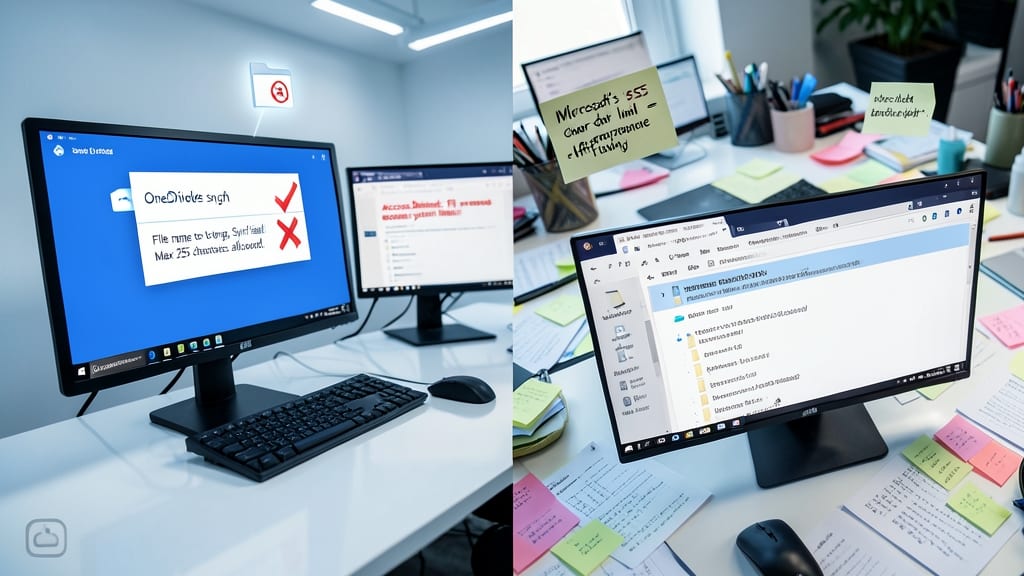
Ever hit "Sync" in OneDrive only to see cryptic errors pop up? Microsoft’s 255-character limit on file names isn’t just a suggestion—it’s a critical guardrail for enterprise workflows. Exceeding it can break sync jobs, corrupt metadata, or even block file sharing in Teams, turning collaboration into a headache.
Stick to under 255 characters to avoid sync failures, especially with large documents or nested folders. OneDrive and Teams silently truncate names over this limit, creating duplicates or inaccessible files. For example, a 300-character name like "2024-Q3-Financial-Reportv04Approved-by-JaneDoeConfidential.pdf" will fail where "2024-Q3-Financial-Reportv04_Approved.pdf" syncs flawlessly.
This rule is non-negotiable for enterprise admins managing shared drives or teams using Teams/OneDrive. A quick habit check now prevents hours of cleanup later. ✨