
PowerPoint
PowerPoint transitions can transform a dull presentation into a dynamic experience—but only if used wisely. These seven carefully selected transition effects will help you create polished slideshows that captivate your audience without overwhelming them.
Fade Slide Transition
When you need to convey authority and sophistication, the Fade Slide Transition is your go-to choice. This timeless effect smoothly dissolves one slide into the next, creating a seamless flow that keeps the focus squarely on your content—not the visuals.
Compatible with PowerPoint 2010 and later, including the latest PowerPoint 365, this transition works flawlessly across all devices and screen resolutions. The zero-distraction design ensures your message remains clear, whether you're presenting to a boardroom of executives or a virtual audience. Plus, it pairs perfectly with subtle animations for added polish without overpowering your slides.
Ideal for corporate reports, legal briefings, or academic lectures, this transition exudes professionalism while keeping your presentation feeling fresh. ⚡
Push Slide Transition
When you want your audience to feel the journey from one idea to the next, the Push Slide Transition delivers a satisfying, directional shift that feels intentional. Unlike the smooth fade, this transition mimics a physical push—like sliding a deck of cards—adding a subtle but noticeable motion that keeps viewers engaged without stealing focus from your content.
Available in PowerPoint 2013 and later, this effect works best with consistent slide layouts (e.g., storytelling pitches, case studies, or narrative-driven decks). The transition speed is fully customizable, letting you control how abrupt or gradual the shift feels. For extra polish, pair it with a 0.5-second pause between slides to emphasize key moments.
Storytellers, educators, and marketers will love how this transition reinforces progression—perfect for client pitches or internal training sessions where you want to guide the audience through a logical flow. ✨
Zoom Transition

When you need to make a slide feel like a dramatic reveal, the Zoom transition delivers with cinematic flair. Unlike subtle fades or pushes, this effect creates instant visual impact by scaling in from a blurred background, drawing the audience’s eye directly to your key message.
Available in PowerPoint 2013 and later (including PowerPoint 365), it’s fully customizable with speed controls and zoom direction (in/out). Pair it with a black slide background for maximum contrast, or use it sparingly to highlight product demos, case studies, or closing arguments. Just avoid overusing it—one well-placed zoom can be more powerful than five.
Trainers, sales teams, and keynote speakers will find this transition especially useful for punching up pivotal moments. Just remember: less is more—save it for moments where you want to command attention. ✨
Morph Transition
When your presentation needs to feel like a seamless flow of ideas rather than a series of disconnected slides, the Morph transition delivers a cinematic effect that blends elements between slides effortlessly. Unlike abrupt cuts or directional wipes, Morph intelligently animates objects, text, and layouts to transform one slide into the next—ideal for creative professionals who prioritize visual cohesion.
This transition works best when your slides share consistent layouts and themes, allowing PowerPoint to intelligently map elements between them. It’s available in PowerPoint 2016 and later, including the Microsoft 365 subscription version, and pairs perfectly with modern design tools like Canva or Adobe Illustrator for polished results. The key is to avoid cluttered slides—too many objects can slow down the animation.
Marketers, designers, and agencies will love Morph for its ability to create smooth, interconnected storytelling without sacrificing professionalism. Just ensure your slides follow a logical structure to maximize its impact. ✨
Wipe Slide Transition
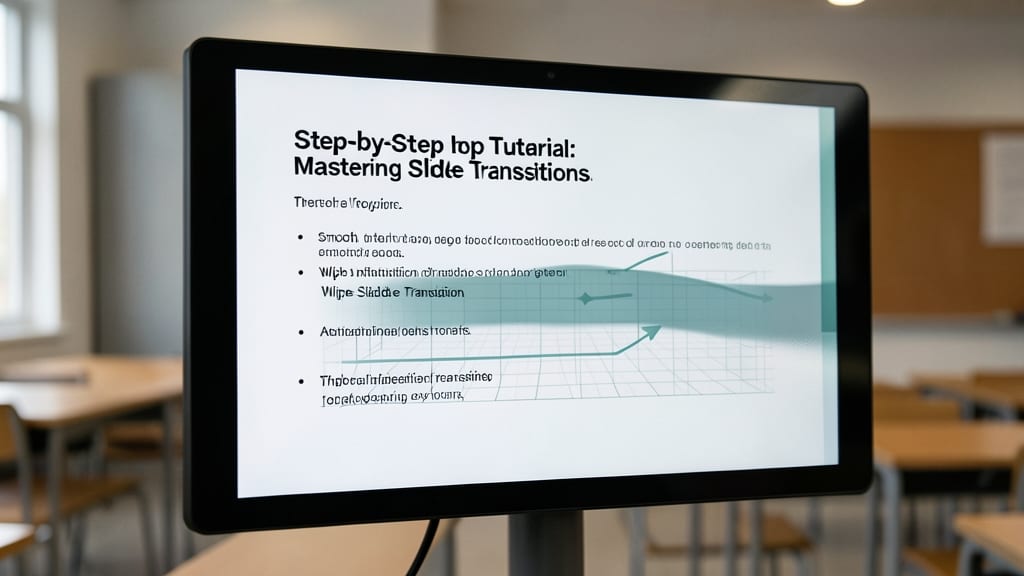
Need to keep your audience locked in during a lesson or tutorial? The Wipe Slide Transition is your secret weapon for guiding attention through sequential steps. Unlike flashy morphs or dramatic zooms, this effect uses directional movement (left, right, up, or down) to create a natural flow—perfect for numbered processes or educational content.
PowerPoint offers four wipe directions, each with a clean, curtain-like reveal that subtly signals progression. The transition works across all versions (including PowerPoint 2010, 2016, and 365) and pairs well with minimalist designs. For extra polish, pair it with consistent slide layouts to reinforce the step-by-step structure.
Educators, trainers, and technical presenters will love how this transition keeps focus on content while adding just enough visual rhythm. Use it to highlight logical sequences—like software tutorials or workflow breakdowns—without distracting from key messages. ✨
Box Out Transition
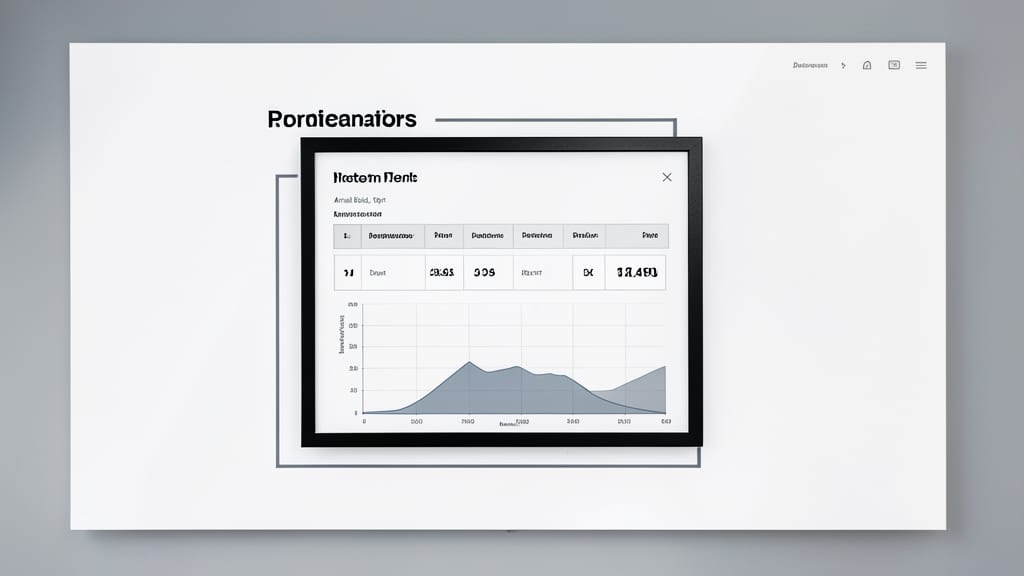
When your presentation hinges on data clarity—like financial projections or technical analyses—the Box Out transition keeps the spotlight squarely on your content. Unlike flashy animations, this effect uses a clean, geometric "box" that neatly frames the incoming slide, ensuring no visual distractions.
Available in PowerPoint 2013 and later, this transition works by creating a subtle border effect that reveals the next slide in a structured way. You can adjust the box size and speed to match your pacing, making it ideal for slides packed with charts or bullet points. The result? A polished, professional look that aligns with corporate or analytical presentations. 💻
Random Bars Transition

When you want to inject playful energy into a presentation without sacrificing professionalism, the Random Bars transition delivers. Unlike linear wipes or smooth fades, this effect reveals the next slide through a dynamic, irregular pattern of horizontal bars—think of a modern, abstract curtain peeling back to unveil your content.
The transition works best with bold, high-contrast designs (e.g., dark backgrounds with bright text) to ensure readability. You can customize the bar color, thickness, and direction (left-to-right or right-to-left) in PowerPoint’s transition settings, making it adaptable for creative projects like portfolio reviews, brainstorming sessions, or artistic pitches. Just avoid overusing it—more than 2-3 slides in a row risks looking disjointed.
Perfect for creative professionals, educators teaching visual arts, or startup founders pitching with flair, this transition shines when paired with minimalist layouts and vibrant accents. Just remember: confidence is key—if you’re comfortable with the energy, your audience will be too. ✨