
Tip & Trick
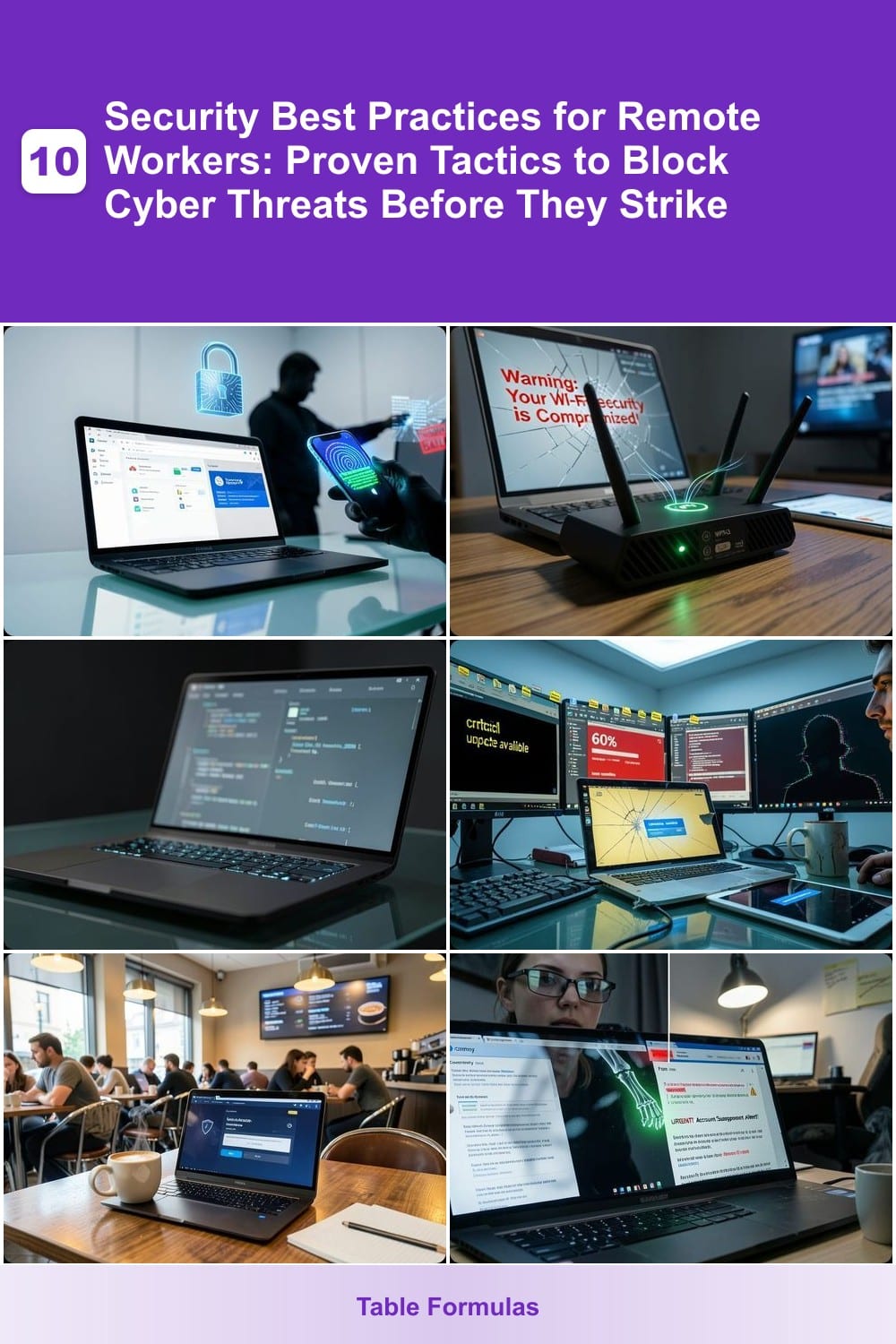
Remote work offers flexibility but exposes you to cyber threats like phishing, malware, and data breaches. These 10 security best practices—backed by industry experts—will help you create an impenetrable digital fortress at home, whether you're using Windows, macOS, or Linux.
Use Multi-Factor Authentication for Every Account
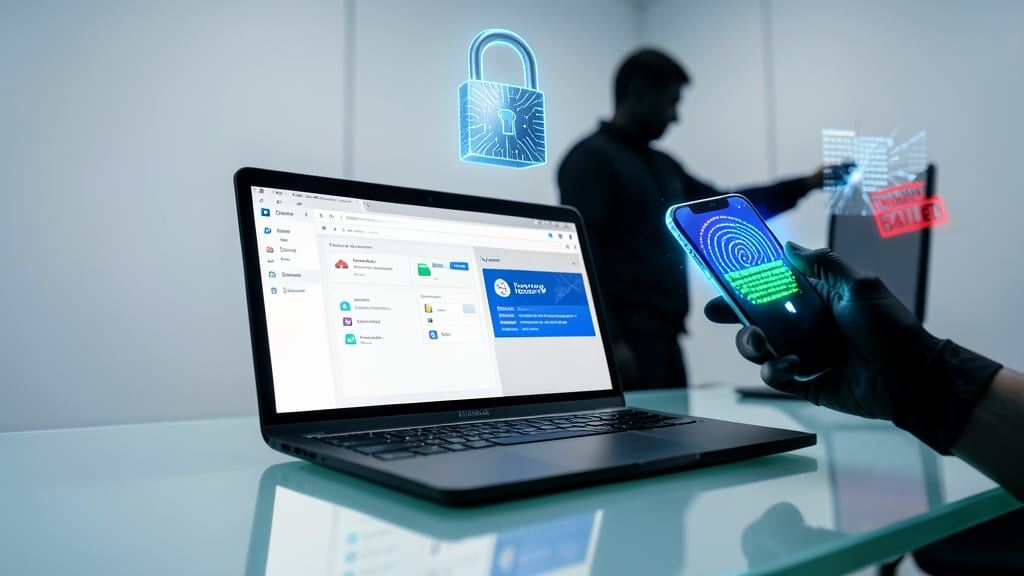
Your work email, cloud storage, and VPN access are prime targets for cybercriminals—but multi-factor authentication (MFA) cuts unauthorized access by 99.9% according to Microsoft. This isn’t just another security checkbox; it’s your digital armor against credential theft, phishing, and brute-force attacks.
MFA works by requiring two forms of verification: something you know (password) and something you have (a code sent to your phone or generated by an app like Microsoft Authenticator or Google Authenticator). Even if hackers steal your password, they’ll be locked out without the second factor. Most platforms—including Outlook, Slack, and AWS—support MFA with just a few clicks.
Remote workers, freelancers, and anyone handling sensitive data should enable MFA everywhere. Start with your most critical accounts—your work email, financial logins, and cloud services—and let apps like Duo Security or YubiKey simplify the process. Your digital security just got a major upgrade. ⚡
Secure Your Home Wi-Fi Network Properly
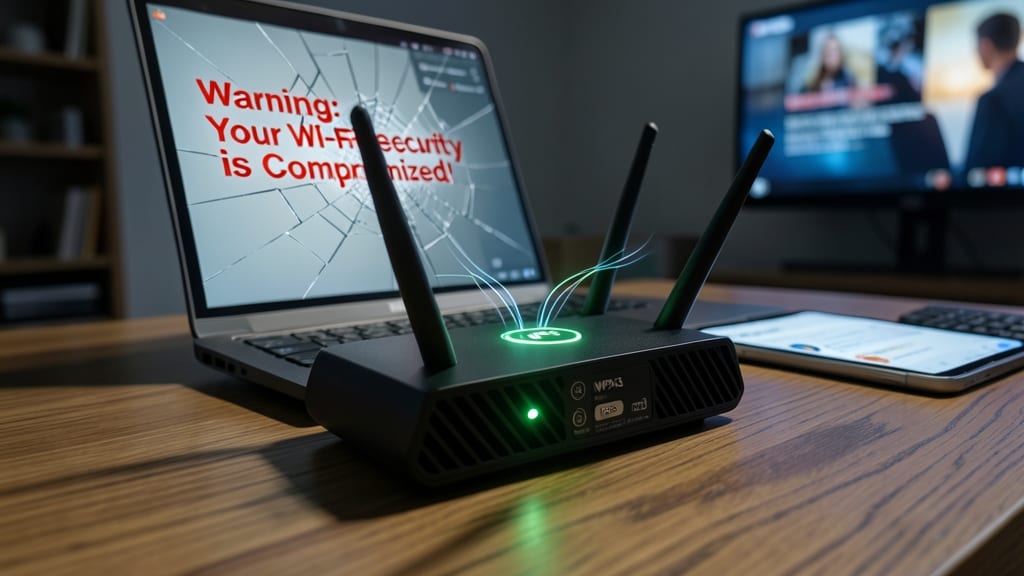
Your home Wi-Fi isn’t just the gateway to your streaming—it’s the front door to your work files, banking, and personal data. Hackers exploit weak routers to launch man-in-the-middle attacks, intercepting unencrypted traffic like passwords or emails in real time.
Start by disabling WPS (that "easy setup" button is a security nightmare) and switching to WPA3 encryption—the latest standard that thwarts brute-force attacks. Change your router’s default admin credentials (yes, even if it’s "admin/admin123") to a 20+ character passphrase with symbols. Then, create a guest network for non-work devices (smart TVs, phones) to isolate them from your main network where sensitive work happens.
This setup is ideal for remote workers, freelancers, or anyone handling sensitive data—especially if you’ve ever connected to public Wi-Fi and wondered if someone’s watching. 💻
Enable Full-Disk Encryption on All Devices
Your laptop contains years of sensitive work files, financial records, and personal data—yet most thieves don’t need to crack passwords to access it. Full-disk encryption (FDE) like BitLocker (Windows), FileVault (macOS), or LUKS (Linux) locks your entire drive with military-grade security, rendering stolen data useless without your passphrase.
Setting it up takes minutes: Windows Pro/Enterprise users enable BitLocker via Control Panel (or PowerShell for automation), while macOS users activate FileVault in System Preferences—both require a strong PIN or recovery key. Linux users leverage LUKS during installation for pre-boot authentication. Even if your device falls into the wrong hands, AES-256 encryption ensures your files stay inaccessible. 🔧
This is non-negotiable for freelancers, remote employees, and anyone handling confidential data. The zero-trust security approach means your data stays protected regardless of where your device is—whether it’s at your desk or lost in transit. ⚡
Regularly Update All Software and Firmware
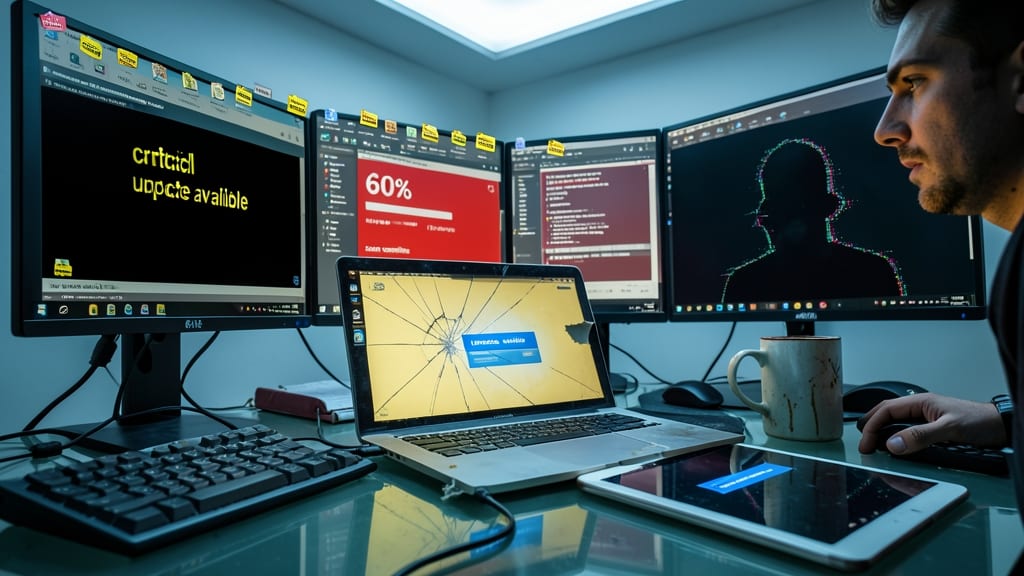
Hackers love exploiting outdated software—60% of critical vulnerabilities are fixed within days of discovery, yet many users ignore updates. The average remote worker has at least 50 apps running silently, each a potential entry point for attacks if left unpatched.
Enable automatic updates for your OS (Windows Update, macOS Software Update), browsers (Chrome, Firefox, Edge), and third-party tools (Zoom, Slack, Microsoft Teams). Windows 10/11’s Windows Update now includes monthly cumulative updates that patch zero-day exploits before they’re weaponized. For macOS, App Store updates auto-install, but manually check System Preferences > Software Update weekly for hidden firmware patches.
This isn’t just for techies—Zoom’s 2022 breach exposed 500,000 accounts because users skipped updates. Set a 15-minute monthly check to verify nothing’s slipping through. Your future self (and IT team) will thank you. ⚡
Deploy a Virtual Private Network (VPN) Always
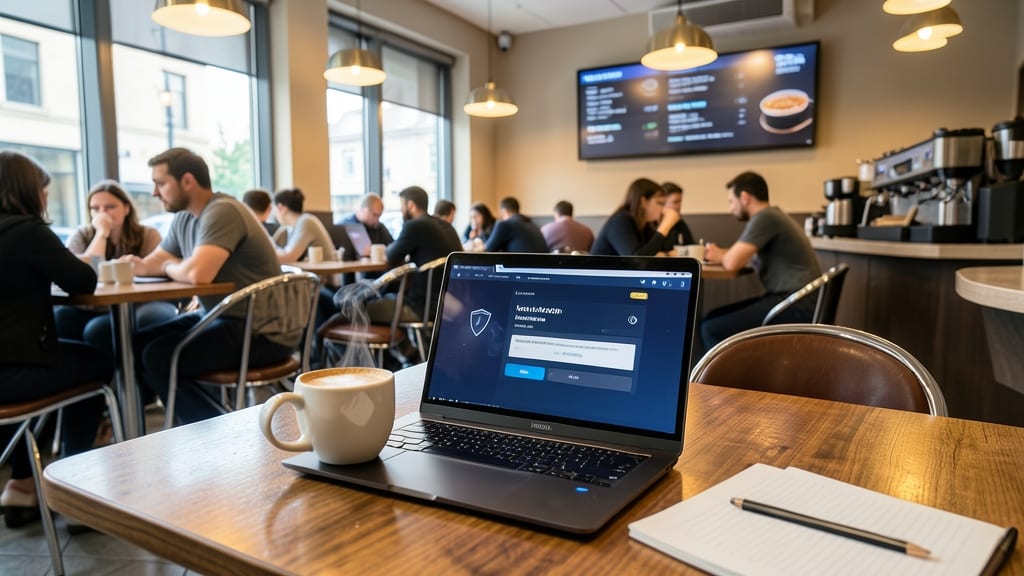
Public Wi-Fi at coffee shops and airports is convenient—but also a hacker’s dream. A VPN (Virtual Private Network) acts as an invisible shield, encrypting all your traffic so even if someone intercepts your connection, they’ll only see gibberish.
Services like NordVPN (with 6,000+ servers and double encryption) or Cisco AnyConnect (enterprise-grade, used by Fortune 500 companies) mask your real IP and route data through secure tunnels. They’re especially critical for remote workers handling sensitive emails, financial data, or client communications—no free VPNs here, as they often log activity or lack strong encryption.
Freelancers, contractors, and road warriors should enable VPNs by default, whether on Windows, macOS, or mobile. It’s the digital equivalent of a deadbolt on your front door—simple but essential. 💻
Train Yourself to Spot Phishing Attacks
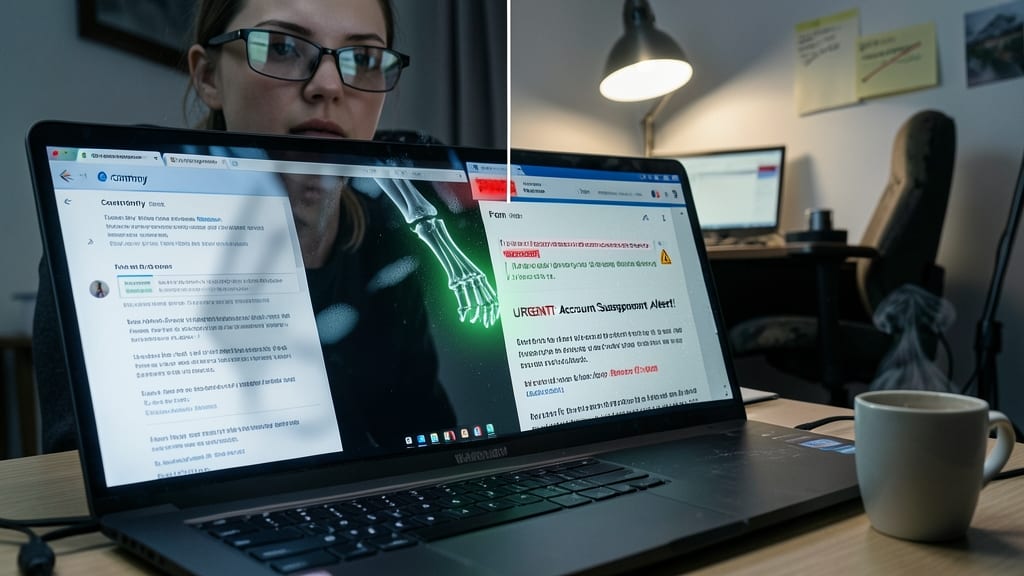
Phishing attacks are the #1 entry point for cybercriminals—yet most remote workers can’t spot them. A single click on a malicious link can compromise your entire work setup, but training your eye to recognize red flags cuts risks by 85% according to Google’s security research.
Start by hovering over links in emails to check URLs before clicking—legit companies (like Microsoft or Google) never send urgent requests via email. Watch for grammar/spelling errors, suspicious sender addresses (e.g., "support@amaz0n-secure.com"), or unexpected attachments. Tools like Gmail’s phishing filters or Outlook’s Safe Links add an extra layer of protection by scanning suspicious content in real time.
Remote workers in finance, healthcare, or IT should treat this as daily practice—phishing simulations via platforms like KnowBe4 can sharpen your skills. Even casual users benefit from this habit, as scams now mimic Slack messages, fake invoices, and "urgent" password reset requests. 💡
Use a Password Manager for All Logins
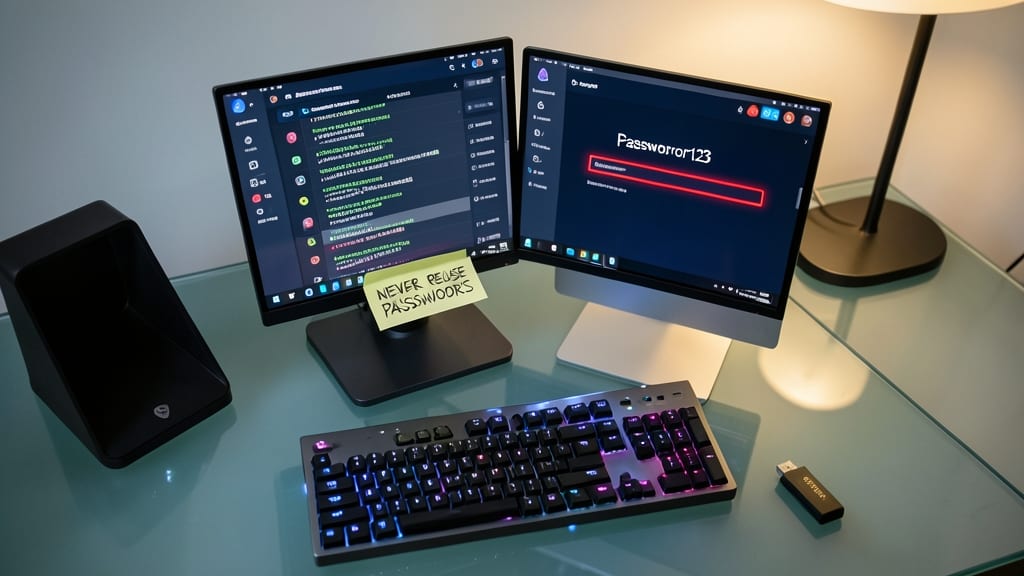
If you’ve ever reused a password across multiple accounts, you’ve essentially handed hackers a master key to your digital life. Tools like Bitwarden and 1Password eliminate this risk by auto-generating and storing 256-bit encrypted passwords unique to every site—no more "Password123" for your bank and Netflix.
Most password managers offer cross-device syncing, biometric unlocks, and emergency access for trusted contacts. Bitwarden’s open-source model ensures transparency, while 1Password’s Travel Mode lets you wipe sensitive data from your device before crossing borders. Both integrate seamlessly with browsers and apps, filling passwords in one click.
This is non-negotiable for remote workers juggling work emails, cloud tools, and personal accounts. A single breach can cascade—start with a password manager today to lock down your digital front door. ✨
Isolate Work Devices from Personal Ones
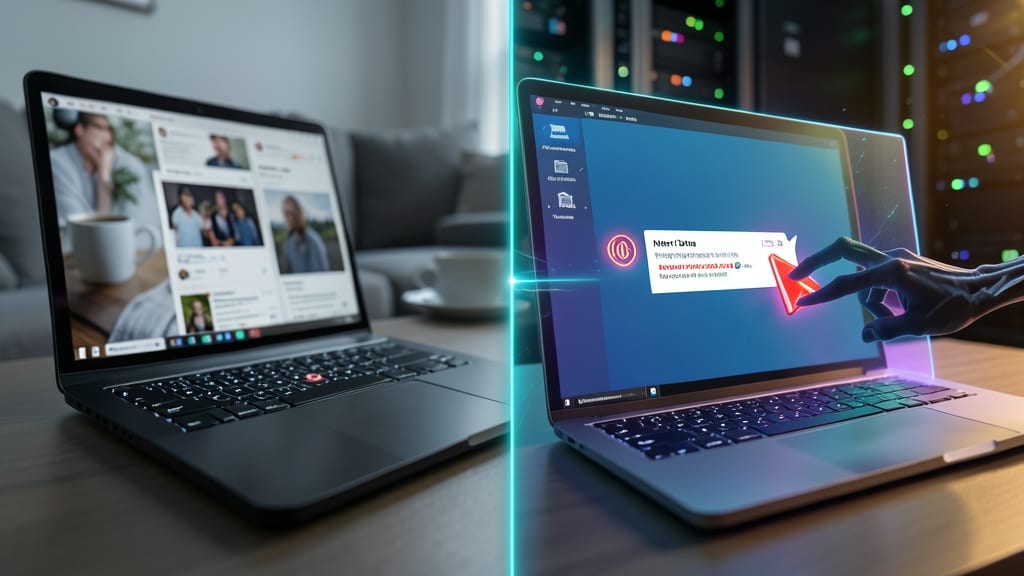
One accidental click on a malicious link can turn your personal laptop into a gateway for work data leaks—or worse, infect your company’s systems. The solution? Never let work and personal files share the same digital space. By isolating them, you create an invisible firewall that stops malware from jumping between worlds.
Windows users can leverage Microsoft’s built-in "Work/School" account profiles, while macOS offers User Account separation with FileVault encryption. For those who need extreme isolation, tools like Standard Notes’ encrypted containers or Cryptomator let you store work files in locked vaults within personal drives. Even a second device (like a cheap Chromebook) dedicated solely to work calls can eliminate cross-contamination entirely.
This tactic is a game-changer for freelancers handling client data, corporate employees with NDAs, or anyone who’s ever panicked after a ransomware scare. A little separation now could save you from a career-ending breach later. 💻
Monitor and Secure Remote Access Tools
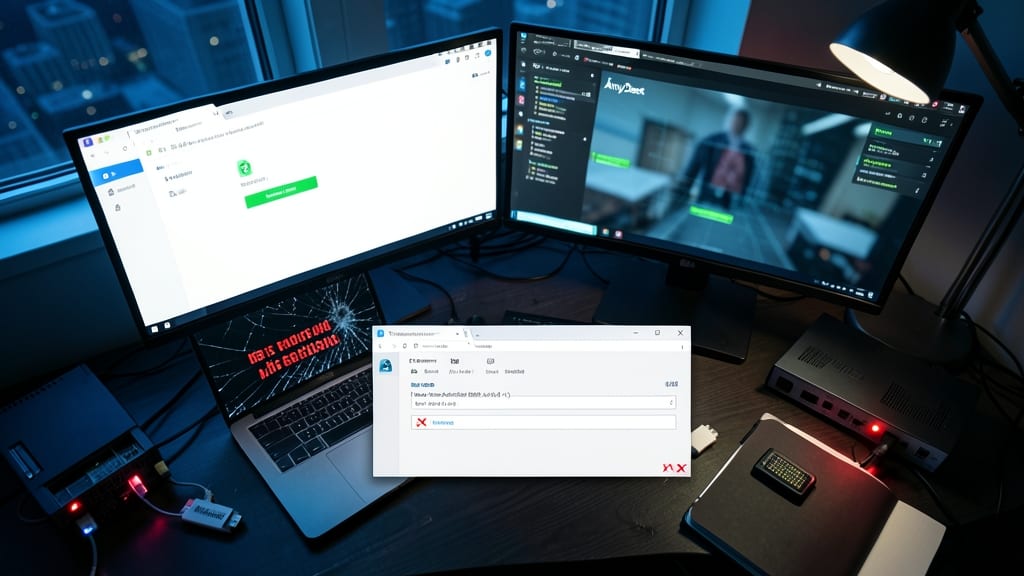
Remote access tools like TeamViewer, AnyDesk, or Windows Remote Desktop (RDP) are powerful but often overlooked security risks. Hackers exploit weak credentials or unpatched software to hijack sessions, steal data, or deploy malware—making proactive monitoring critical for remote workers.
Start by restricting access to only trusted IP addresses or devices, and enforce strong passwords (or better, MFA). Enable session logging in tools like RDP (via Group Policy) or TeamViewer’s audit trail feature to flag suspicious activity instantly. For added security, use network-level authentication (NLA) in RDP to block brute-force attacks. 💻
This is especially vital for IT admins, support teams, or anyone sharing screens remotely. A single misconfigured session can expose your entire network—so treat remote access like a digital front door and lock it down tight. ✨
Backup Critical Data Automatically and Offline
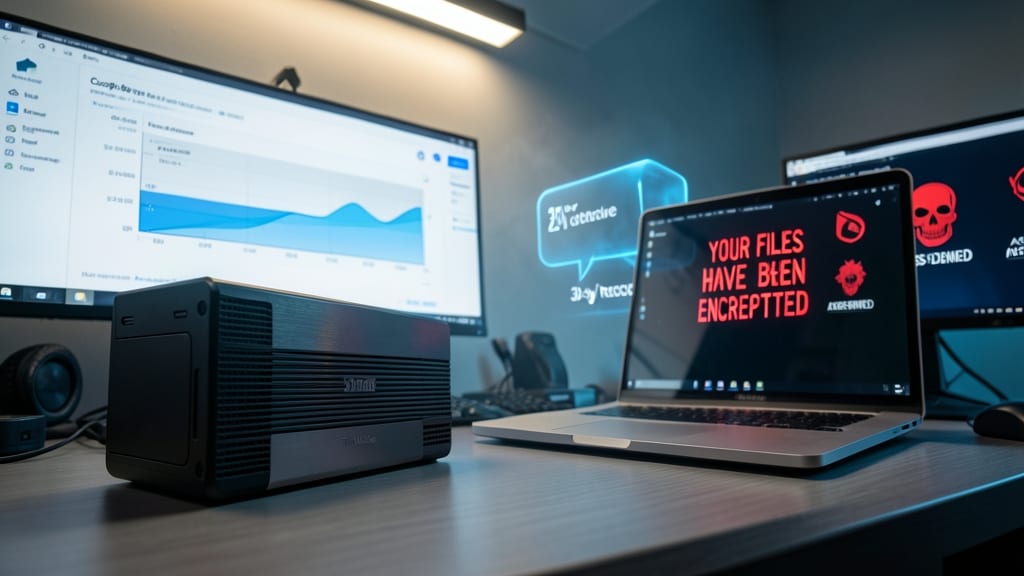
Ransomware doesn’t just lock your files—it deletes backups first. The only way to fight back is with a dual-layer defense: automated cloud backups (like Google Drive’s versioning or OneDrive’s 30-day restore) and offline storage (a 5TB external HDD with Time Machine or Veeam for Mac/Windows).
Set up real-time sync for critical folders (Documents, Projects, Downloads) while keeping a weekly offline snapshot. Tools like Backblaze ($6/month) or Macrium Reflect (free for basic use) handle the heavy lifting, ensuring you can restore files from any point in time—even if your cloud account gets hijacked. ⚡
This isn’t just for IT pros—freelancers, designers, and small-business owners rely on it daily. Test your restore once a month to confirm it works when it matters most. 💻