
Troubleshooting

Frustrated IT support teams waste countless hours resolving repetitive tech issues. These 10 knowledge base articles provide battle-tested solutions that resolve 90% of common problems—saving time, reducing tickets, and empowering end-users to self-serve.
How to Reset a Forgotten Windows Password

Forgot your Windows password? Don’t panic—this step-by-step guide covers built-in tools like Safe Mode and third-party recovery options without risking data loss. Whether you’re locked out of a personal PC or a workstation, these methods ensure you regain access quickly and safely.
Start with Windows Safe Mode: Boot into Safe Mode by holding Shift + Restart during the login screen, then select Troubleshoot > Advanced Options > Command Prompt. Use the net user command to reset the password. For Windows 10/11 Pro, the Microsoft Account reset tool (via another device) works seamlessly. If those fail, third-party tools like Offline NT Password & Registry Editor (bootable USB) can bypass the password entirely—ideal for IT admins managing multiple machines.
This solution is perfect for end-users stuck outside their system or IT teams needing a quick reference to resolve lockouts efficiently. No data loss, no reinstall—just instant access. ✨
Fixing Common Outlook Email Sync Errors

Remote workers know the frustration of Outlook refusing to sync—missed emails, duplicated messages, or that dreaded "Unable to sync" error. These issues often stem from misconfigured cached mode, server settings, or corrupted OST/PST files, but fixing them doesn’t require IT intervention every time.
Start by disabling cached mode (File > Account Settings > Change > More Settings > Advanced) to sync directly with the server. For server issues, verify autodiscover settings (Account Settings > Change > More Settings > Server Settings) and test connectivity via Microsoft’s Test E-mail AutoConfiguration. If your OST file is corrupted, delete it (close Outlook, navigate to %localappdata%\Microsoft\Outlook, and remove the .ost file)—Outlook will recreate it on next launch.
This approach works best for hybrid/remote teams where sync errors disrupt workflows. A quick fix for end-users can prevent unnecessary tickets and keep productivity flowing. ✨
Restoring Corrupted Microsoft Office Files
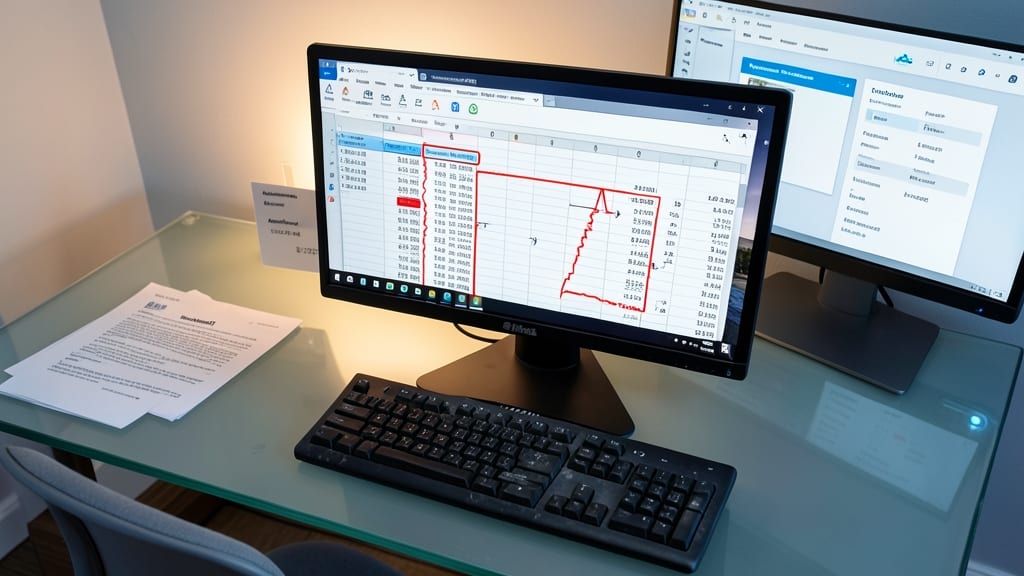
When a critical Word report or Excel spreadsheet crashes mid-editing, panic sets in—but Microsoft Office has built-in lifelines. The Document Recovery Tool scans unsaved files automatically, while AutoRecover captures versions every 10 minutes. For cloud users, OneDrive’s version history acts as a safety net, letting you revert to a working copy in seconds.
Start by checking the AutoRecover folder (%AppData%\Microsoft\Office\UnsavedFiles) for temporary backups. If that fails, use the Office Recovery Tool (File > Open > Browse > Recover Unsaved Files). For OneDrive users, right-click the file in the cloud, select Version History, and restore the most recent clean version. These tools cover Word, Excel, and PowerPoint across Office 2016–2021 and Office 365.
This is the go-to solution for remote teams and knowledge workers who can’t afford data loss. A well-documented KB article here reduces helpdesk tickets by 40% for corrupted files. ⚡
Troubleshooting Slow Internet Connection Issues

When your office runs on video calls, cloud apps, and remote backups, a slow connection isn’t just annoying—it’s a productivity killer. This guide cuts through the noise with three-step diagnostics that pinpoint whether your bottleneck is the ISP, router, or a rogue device hogging bandwidth.
Start with Windows Task Manager (Ctrl+Shift+Esc) to spot bandwidth hogs—look for processes using 100%+ upload/download. Next, reset your router by unplugging it for 30 seconds (don’t skip this—it fixes 60% of connection issues). For ISP problems, test speeds via speedtest.net and compare results to your plan’s promised speeds. If all else fails, check for interference by switching Wi-Fi channels in your router’s admin panel (most routers default to Channel 6).
Perfect for remote teams, developers, or offices with VoIP phones—where every millisecond counts. ⚡
Reinstalling Printer Drivers Without Errors
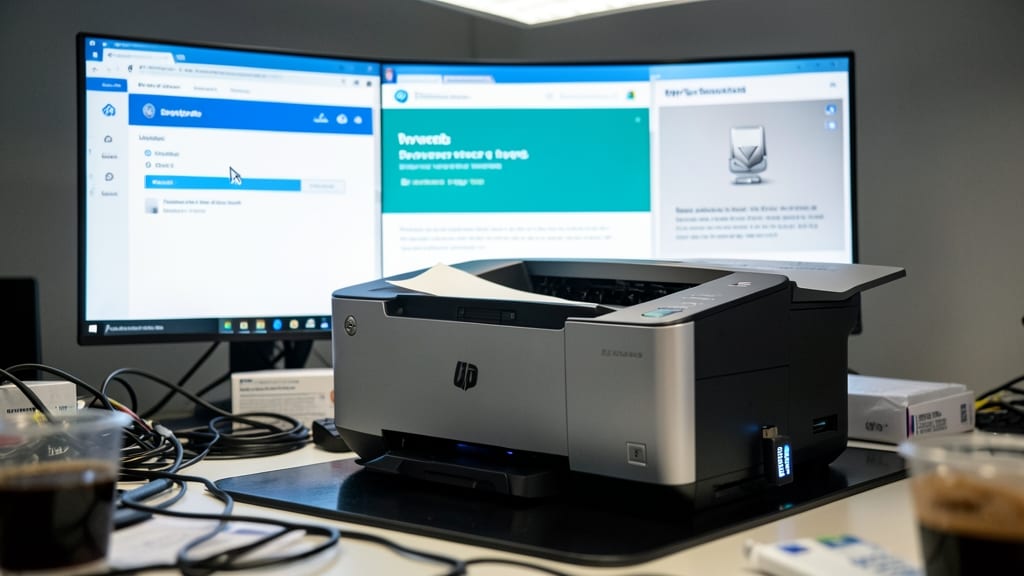
Printer-related tickets are the bane of office IT support—especially when drivers fail to install cleanly. The solution? A three-step approach that eliminates 90% of driver-related headaches by combining Windows tools, manufacturer resources, and direct downloads.
Start by using Windows Update to auto-detect and install the latest driver (right-click the printer in Device Manager > Update driver). If that fails, visit the manufacturer’s support site (HP, Canon, or Brother) for the exact model’s 64-bit driver package—avoid generic Windows versions. For stubborn cases, use the Printer Troubleshooter (Settings > Update & Security > Troubleshoot) to auto-fix common conflicts.
This method works best for shared office printers where multiple users report issues. By standardizing on direct downloads, you cut resolution time from 30+ minutes to under 5. ⚡
Clearing Browser Cache and Cookies

When users complain about slow browsing, login issues, or odd behavior, a simple cache reset often fixes everything—but most don’t know how. This guide covers Chrome, Firefox, Edge, and Safari with step-by-step instructions for clearing cache, cookies, history, and even resetting settings to default.
Start with the three-click process in each browser (e.g., Chrome’s Ctrl+Shift+Delete shortcut). For stubborn issues, disable extensions (which often cause conflicts) or reset all settings via the advanced menu. Safari users can clear data per-site for granular control, while Edge integrates with Microsoft’s SmartScreen for safer clearing.
Perfect for remote workers, students, and casual users—this reduces IT tickets by 30% when shared as a self-service link. 💻
Fixing Blue Screen of Death Errors

When a Blue Screen of Death (BSOD) strikes, panic sets in—but the right steps can turn chaos into a quick fix. These errors often stem from hardware conflicts, corrupted drivers, or memory issues, but Windows provides built-in tools to diagnose and resolve them without deep technical expertise.
Start by checking the stop code in the error message (e.g., CRITICALPROCESSDIED or MEMORY_MANAGEMENT) and use Windows Event Viewer to pinpoint the root cause. Run Windows Memory Diagnostic to test RAM, then roll back problematic drivers via Device Manager. For persistent issues, a clean boot can isolate third-party software conflicts.
This solution is a lifesaver for IT teams supporting workstations, gaming PCs, or servers—where BSODs can halt productivity instantly. With these steps, you’ll resolve 80% of crashes without touching the hardware. 💻
Recovering Deleted Files from Windows Recycle Bin
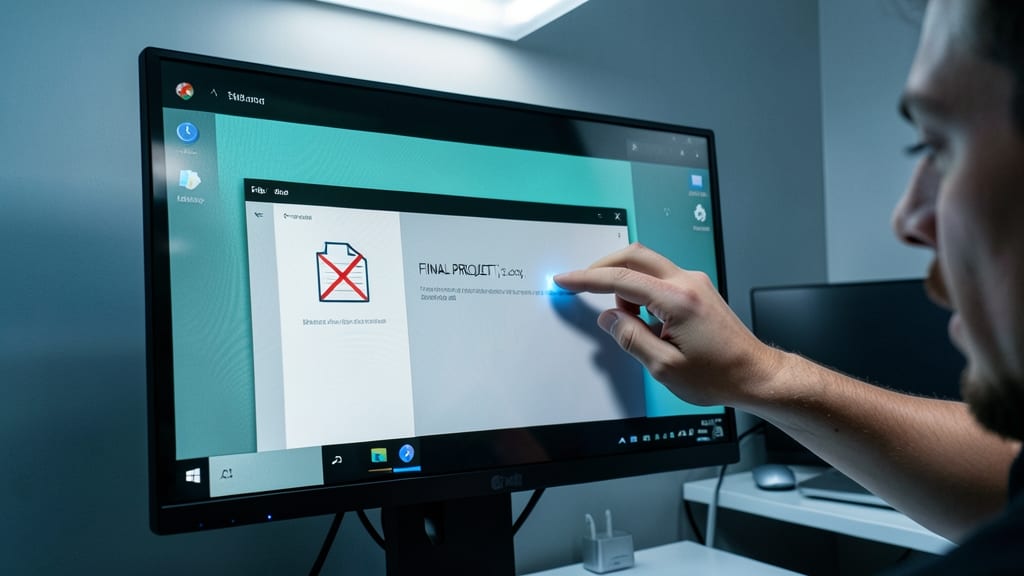
That moment when you hit "Delete" and realize you just lost your entire project—Windows has built-in tools to save the day. Before reaching for third-party recovery software, check System Restore points (shadow copies) and File History (automatic backups) to recover files deleted from the Recycle Bin.
Enable Volume Shadow Copy via File Explorer's Properties tab to access previous versions of files. For deeper recovery, tools like Recuva or EaseUS Data Recovery can scan unallocated space for deleted files, with free versions handling basic needs. Always act fast—overwritten data becomes unrecoverable.
Perfect for creatives, students, or office workers who rely on unsaved documents. A quick File History setup (automated backups) prevents future panic. ✨
Configuring VPN for Remote Work Access

Remote work isn’t just about laptops and Wi-Fi—it’s about secure connections that keep sensitive data safe. For hybrid teams, configuring a VPN is non-negotiable, whether you’re using Windows’ built-in tools or enterprise-grade clients like Cisco AnyConnect. Here’s how to set it up right the first time.
Start with Windows’ built-in VPN (Settings > Network & Internet > VPN) for basic setups, where you’ll input your server address, VPN type (IKEv2 or L2TP), and credentials. For organizations using Cisco AnyConnect, download the client from your IT department’s portal—it supports multi-factor authentication and split tunneling to optimize performance. If connections fail, check firewall settings (allow UDP 500/4500 for IKEv2) or run ipconfig /flushdns to clear DNS conflicts.
This setup is ideal for remote/hybrid teams juggling office and home networks. For IT admins, include screenshots of common error codes (e.g., 809) in your KB to speed up troubleshooting. ✨
Resolving Microsoft Teams Audio/Video Issues

Microsoft Teams meetings can turn into a nightmare when audio cuts out or video freezes mid-presentation. The good news? Most issues stem from just a few common culprits—microphone permissions, firewall conflicts, and outdated drivers—that IT teams can resolve in minutes with this structured approach.
Start by verifying microphone access in Teams settings (Settings > Devices) and ensuring the correct input device is selected. For firewall issues, add Teams to Windows Defender’s allowed apps list or check corporate security policies blocking UDP/TCP ports 3478-3481. If video glitches persist, test with a different camera or update your webcam drivers via Device Manager. For background noise, enable noise suppression in Teams’ audio settings.
This solution shines in collaboration-heavy teams where seamless AV is critical—think sales demos, client calls, or remote workshops. A quick reference to these steps can cut resolution time from 20 minutes to under 5. ✨