
Coding
Excel's math and trigonometric functions unlock powerful data analysis and engineering capabilities. From financial modeling to physics simulations, these 10 essential functions will transform how you work with numbers in spreadsheets.
SUM Function for Basic Calculations

Need to add up numbers fast in Excel? The SUM function is your go-to tool for quick calculations—whether you're tallying sales figures, tracking inventory, or balancing budgets. It’s the simplest way to add values across cells or ranges without manual entry, saving hours of tedious work.
Just type =SUM(range) (e.g., =SUM(A1:A10)) in any cell, and Excel instantly calculates the total. It even handles non-adjacent ranges (e.g., =SUM(A1:A5,C1:C5)) and ignores empty or text cells. For dynamic data, use SUMIF or SUMIFS to add values based on conditions like dates or categories.
Perfect for accountants, small business owners, or anyone managing spreadsheets—this function is the foundation of efficient data analysis. ⚡
AVERAGE Function for Statistical Analysis

When you need to measure performance consistency—whether tracking machine efficiency or analyzing sales trends—the AVERAGE function becomes your go-to tool. Unlike simple totals, it calculates the mean value across datasets, revealing patterns that raw numbers miss.
Simply type =AVERAGE(range) to analyze anything from quality control metrics to employee productivity scores. The function automatically ignores text or empty cells, making it reliable for messy real-world data. For engineering teams, it’s perfect for evaluating performance deviations in manufacturing outputs or energy consumption rates.
Business analysts and engineers will find this function indispensable for spotting trends without manual calculations. Start using it today to turn raw numbers into actionable insights! ✨
SIN Function for Trigonometric Calculations

When your calculations hinge on angles—whether modeling wave patterns or designing electrical circuits—Excel’s SIN function becomes your secret weapon. Unlike basic math functions, it calculates the sine of an angle (in radians), unlocking precision for projects where degrees alone won’t cut it.
The syntax is simple: =SIN(angleinradians), but the power lies in its applications. For example, calculate the vertical displacement of a pendulum in physics simulations or determine AC current phase shifts in electrical engineering. Pair it with RADIANS() to convert degrees first, or nest it in arrays for batch processing.
This function is a must for engineers, physicists, and hobbyists working with rotational mechanics or periodic data. Try it with =SIN(RADIANS(30)) to see how 30° converts to its sine value—then scale up to complex systems. ✨
PI Function for Circle Calculations

When precision matters in circular designs—think pipes, gears, or architectural domes—the PI() function in Excel delivers the exact value of π (3.14159265358979) you need for accurate calculations.
This constant is hardcoded into Excel, so typing =PI() instantly returns the full 15-digit value. Combine it with radius measurements to calculate circumference (=2PI()radius) or area (=PI()*radius²), ensuring your blueprints and engineering specs meet exacting standards.
Ideal for draftspeople, machinists, and DIY enthusiasts working with circular components, the PI function eliminates manual approximations and keeps your projects on target. ✨
ROUND Function for Data Precision

When a single decimal point can mean the difference between a $10,000 profit and a $10,000 loss, the ROUND function becomes your financial safety net. Unlike other math functions that perform calculations, this one ensures your numbers display exactly as required—no more, no less—preventing rounding errors that could derail compliance or reporting.
Use it with two arguments: the number to round and the number of decimal places (e.g., =ROUND(3.14159, 2) returns 3.14). Negative values round to the nearest ten, hundred, etc., while zero truncates decimals entirely. It even handles negative numbers correctly, rounding them toward negative infinity. For financial reporting, this level of control is non-negotiable.
Accountants, auditors, and anyone handling currency or tax calculations will rely on this function daily. Pair it with ROUNDUP or ROUNDDOWN for conservative estimates, and you’ve got a precision toolkit for any spreadsheet. ✨
DEGREES Function for Angle Conversion
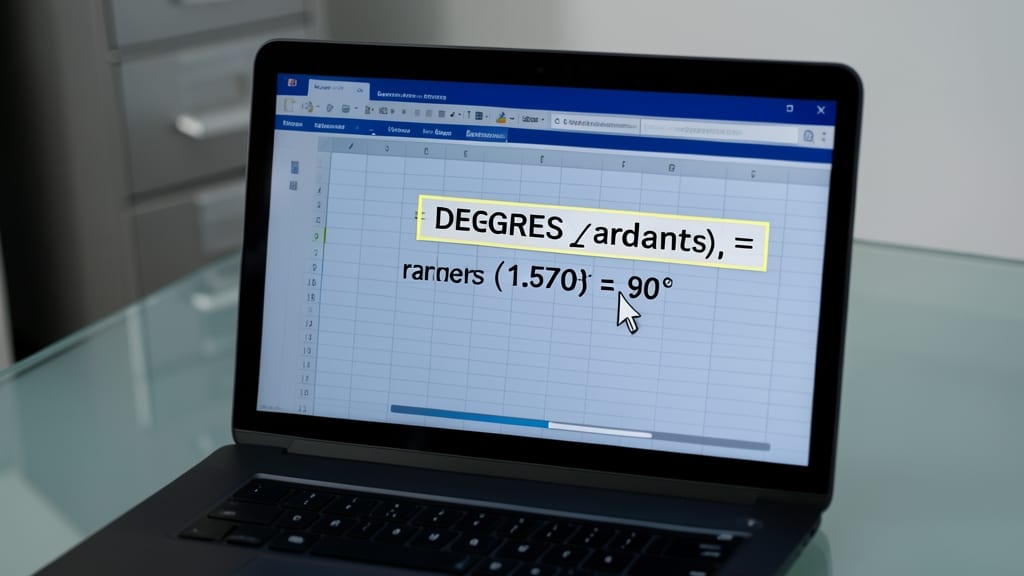
When your calculations involve angles but need results in the familiar degrees format, Excel’s DEGREES function bridges the gap between radians and real-world measurements. Unlike its trigonometric counterparts, this function is purely about unit conversion—critical for fields where degrees are the standard, like surveying or GPS navigation.
The syntax is straightforward: =DEGREES(radian_value), where you input radians (e.g., =DEGREES(PI()/2) returns 90°). It handles all conversions automatically, even for negative values or large datasets. Pair it with RADIANS for bidirectional conversions, or nest it inside trig functions like SIN or COS to ensure angle consistency in physics or engineering models.
Surveyors mapping terrain, drone pilots plotting flight paths, or even DIYers building angled structures will find this function indispensable. It’s the missing link when your data speaks in radians but the world demands degrees. ✨
POWER Function for Exponential Calculations

When your calculations involve exponential growth—like compound interest or population projections—the POWER function is your go-to tool in Excel. Unlike linear calculations, this function handles scenarios where small changes multiply over time, making it indispensable for financial analysts, biologists, and engineers.
The syntax is straightforward: =POWER(number, power), where number is the base and power is the exponent. For example, calculating $10,000 invested at 5% annual interest for 10 years uses =POWER(1.05, 10) to return the future value. It also supports negative exponents (reciprocals) and fractional powers (roots), giving you flexibility for complex models.
This function shines brightest for professionals modeling compound interest, chemical reactions, or electrical decay curves. Whether you're projecting revenue growth or simulating decay processes, POWER delivers precise results without manual calculations. ✨
SQRT Function for Square Root Operations

Need to find the length of a diagonal, calculate standard deviations, or solve quadratic equations? The SQRT function is your go-to tool for extracting square roots with precision in Excel.
With a simple syntax—=SQRT(number)—this function handles everything from basic square roots (like √9 = 3) to complex geometric calculations. It’s perfect for Pythagorean theorem applications, statistical variance formulas, or any scenario where you need to find the root of a value. The function even works with negative numbers (returning imaginary results as text).
Engineers, statisticians, and even students will appreciate how SQRT simplifies calculations without manual guesswork. Just plug in your value, and let Excel handle the rest. ✨
RADIANS Function for Trigonometric Work

When your engineering calculations demand precision, the RADIANS function bridges the gap between real-world angles and Excel's trigonometric formulas. Unlike degrees (what humans use daily), most trig functions in Excel—like SIN or COS—require input in radians for accurate results.
Simply type =RADIANS(angleindegrees) to convert any angle (e.g., =RADIANS(45) returns 0.785398). This is critical for physics simulations, structural engineering stress calculations, or even GPS coordinate conversions where radians are the standard unit.
Engineers and data scientists relying on trigonometry-heavy workflows (think signal processing or orbital mechanics) will find this function indispensable for maintaining calculation accuracy. ⚡
FACT Function for Permutation Calculations
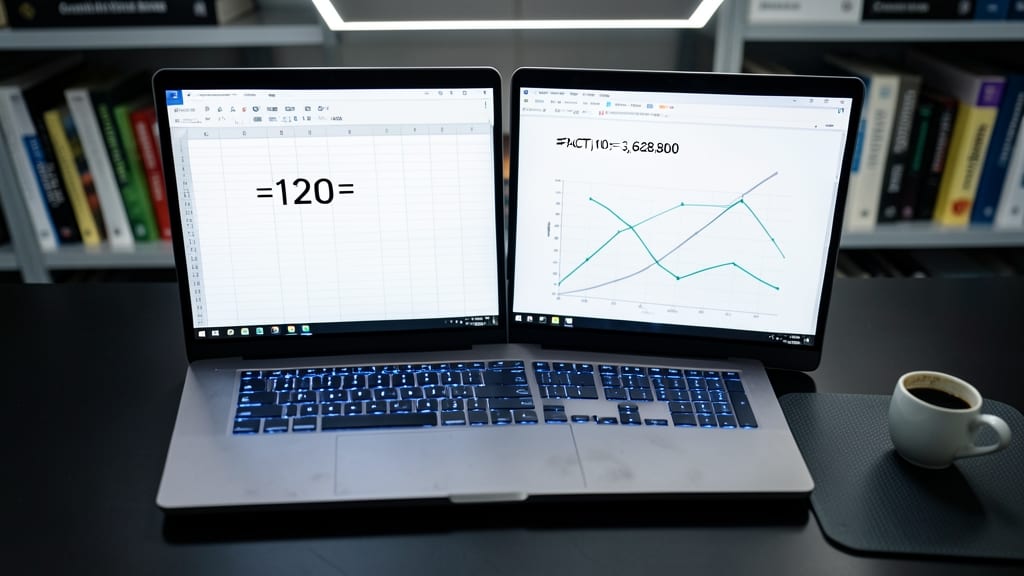
When probability theory meets spreadsheets, the FACT function becomes your secret weapon. It calculates factorials—critical for permutations, combinations, and statistical distributions—with a simple input like =FACT(5) returning 120 instantly.
This function handles values up to 170! (Excel’s limit) and integrates seamlessly with other math functions. Use it to compute binomial coefficients (e.g., =FACT(10)/(FACT(3)*FACT(7)) for combinations) or model Poisson distributions in risk analysis. The syntax is straightforward: just input a non-negative integer.
Data scientists and engineers will love how FACT simplifies complex calculations—whether you're analyzing survey responses, optimizing algorithms, or teaching combinatorics. ⚡